You will find a detailed explanation on the initialization and use of your Ledger Nano S on the Coinhouse blog. The main steps to use your Ledger Nano S are summarized below:
Prerequisites for using the Nano S
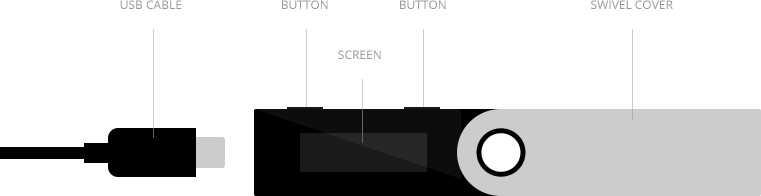
The Nano S features an OLED display, 2 buttons, and comes with a micro USB to USB cable to be plugged into the USB 2 port of your computer (not USB 3 compatible). If your computer only has USB C ports, you can use an On-The-Go adapter.
- Navigation:
- Press the left or right button to scroll through menus.
- Press both buttons simultaneously and briefly to select and confirm.
Configuration
Initialization does not need to be performed online.
- Connect the Nano S to a wall outlet or a computer.
- Press both buttons as indicated on the screen.
- Choose setup type:
- Configure as a new device: Press the right button (above the checkmark).
- Restore a configuration: Press the left button (above the cross) to import an existing backup.
- Set a PIN Code (4 to 8 digits):
- Use the left button to decrease values, the right button to increase values, and both buttons to validate each digit.
- Note: The PIN code is only finalized after completing the 24-word backup step.
Backup of 24 Words
The 24 recovery words will display one by one. This step is critical as it provides the only access to your wallet in case of loss, theft, or hardware failure.
- Write down each word on the Recovery Sheet provided in the box.
- Verify each word multiple times, ensuring correct spelling and exact numerical order (word #1 in position 1, word #2 in position 2, etc.).
- Important details:
- This list makes you the sole owner of your cryptocurrencies.
- The list is shown only once during initialization and will never be displayed again.
- Confirmation: Validate the words on the device by selecting the corresponding copied words when prompted.
When the screen displays "Your device is now ready", configuration is complete.
Apps Installation
To open and manage a wallet, you must:
- Launch the wallet application in Ledger Live.
- Open the dedicated companion app on your Nano S to unlock and sync the wallet.
Each wallet requires setup both within Ledger Live (under the "Accounts" tab) and on the physical device.
The Nano S supports multiple applications (e.g., Bitcoin, Ethereum, XRP). Applications can be installed, deleted, or replaced at any time using the Manager tab in Ledger Live.
If you have any further questions, we are at your disposal !
Monday to Friday : from 9:30 to 12:30 and 13:30 to 18:00.
Contact us by phone 👉 +33 1 82 88 29 51